Creating a route
The route planning module allows you to create a route with any number of stops. The map view is displayed for this purpose.
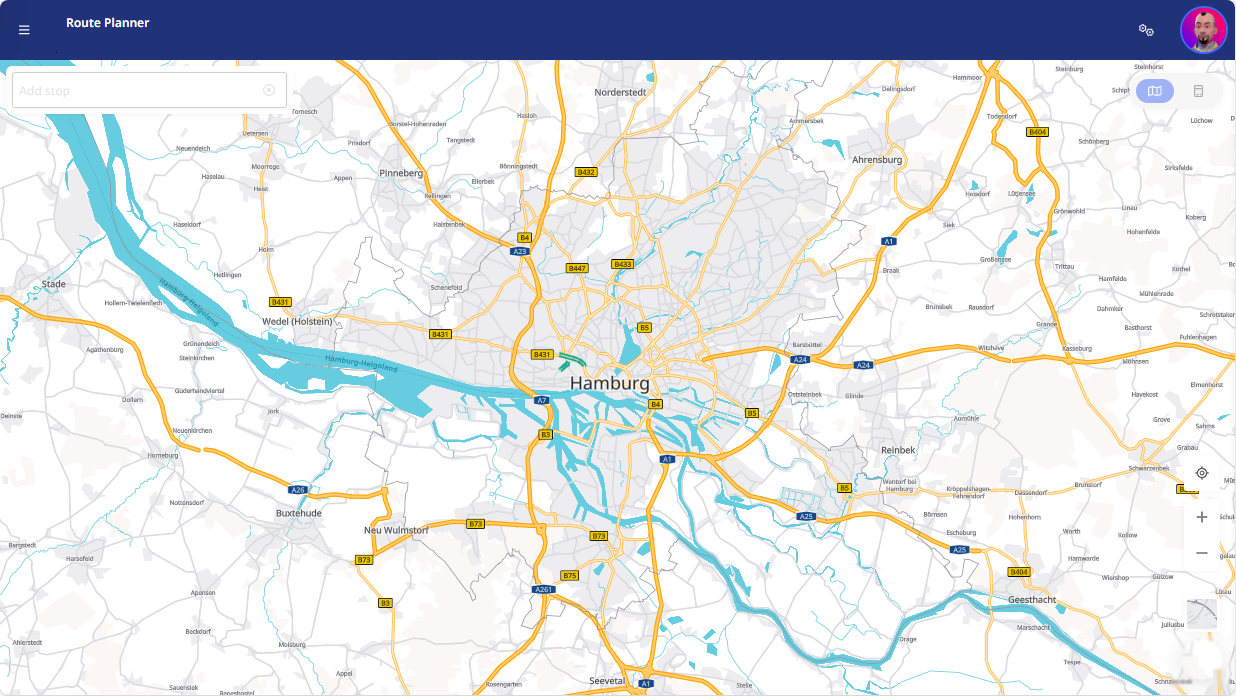
To create a route, proceed as follows:
|

|
|
|
|
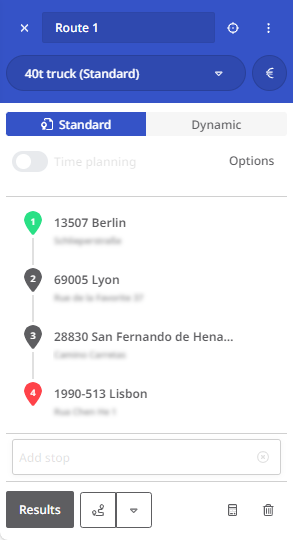
|
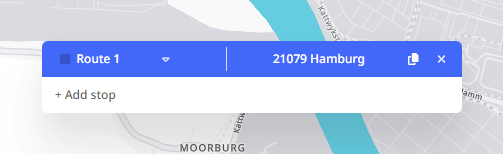
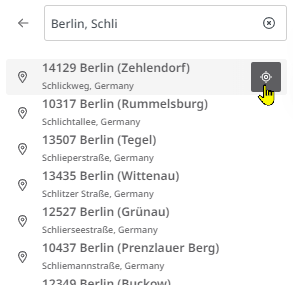

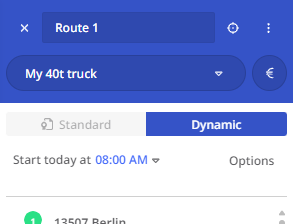
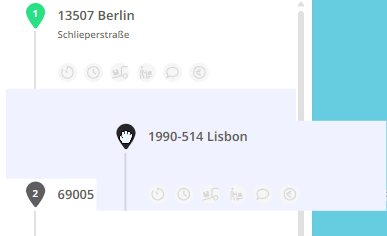
If the route had already been calculated in its previous order, it is now necessary to click the button Results> again, as the route result is automatically reset when the stops are changed.
-
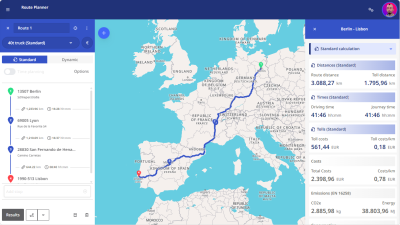
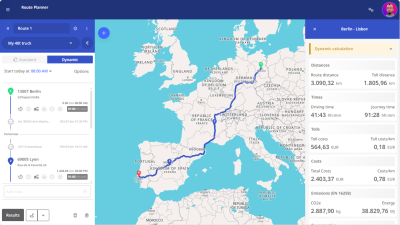
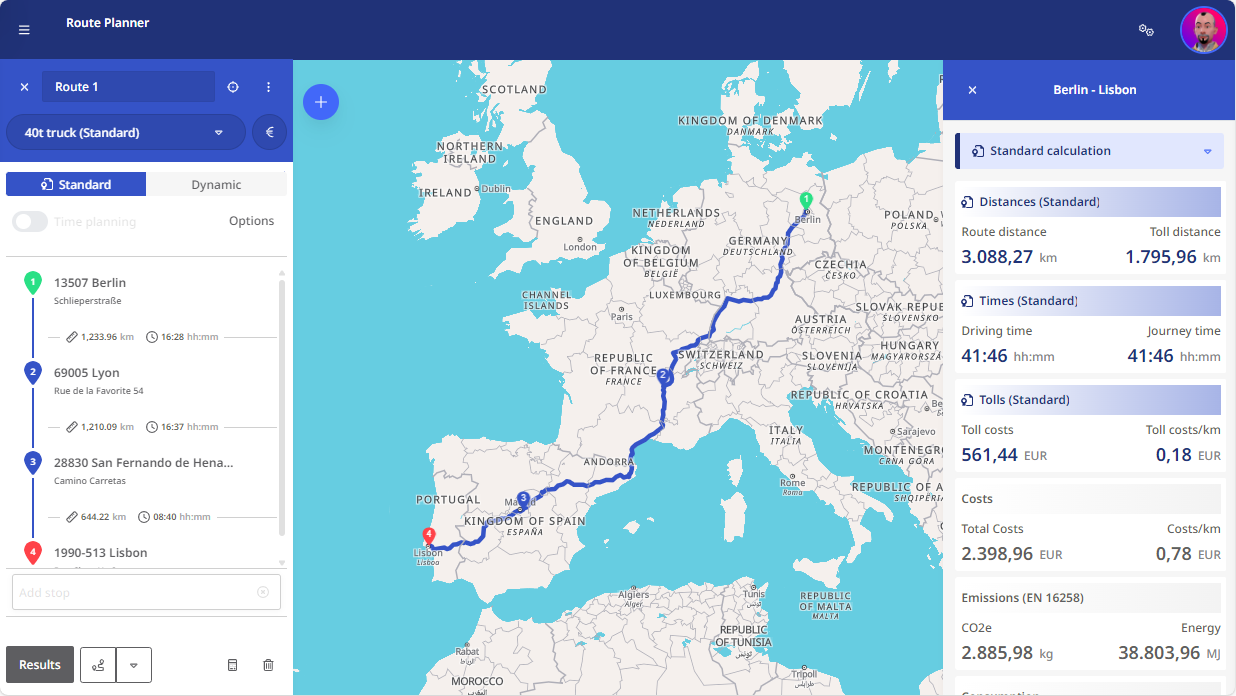
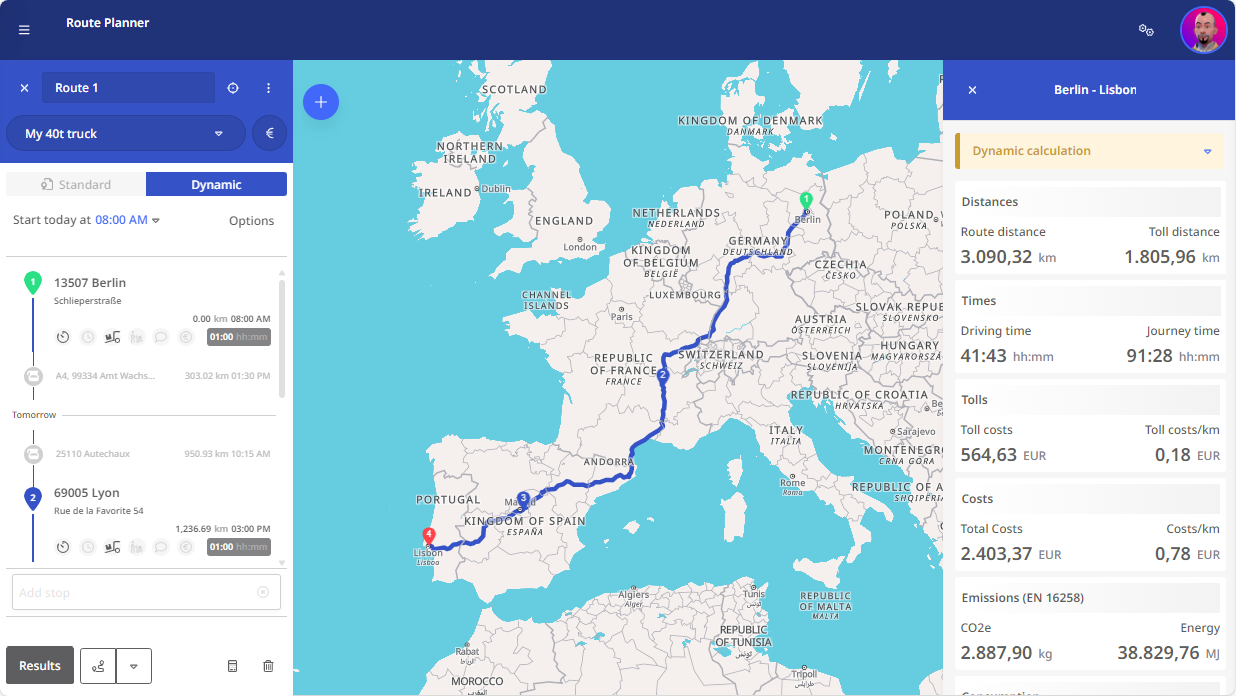
The calculated route is now displayed on the map. The rough route is listed on the left-hand side of the window. Information on distances, times, costs, tolls, emissions and consumption is displayed in the right-hand pane. This information is based on:
-
the settings in your cost and vehicle profiles (standard and dynamic),
-
the settings you have made for the individual stops (Dynamic).
-
Select a vehicle profile
|
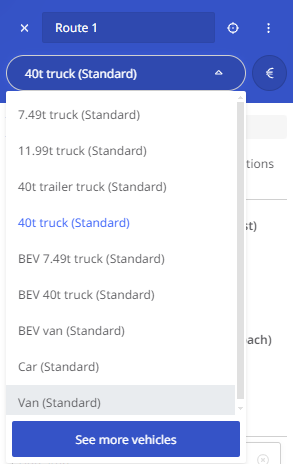
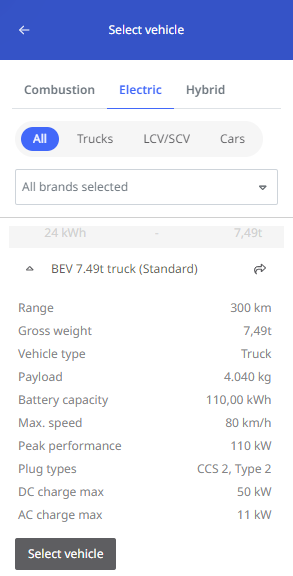
To select a suitable vehicle for your planned route, click on the drop-down button in the route creation header. A shortened list of available vehicles is displayed. You can select the desired vehicle profile here. If the desired vehicle is not included in the shortened list, you can access a list of all vehicles via the <See more vehicles> button. This list is organized by vehicle category. For electric vehicles, additional information is available for each vehicle. You can select your desired vehicle from this list by clicking on the respective arrow button.
|
|
Optimizing the sequence of a route
To plan a route as efficiently as possible and reduce unnecessary distances (and the associated costs), you can use the corresponding function in the route planning via the button <Optimize sequence> below the stop list. The route planner will then try to reorganize the stops on your route so that the entire route can be kept as short as possible. The start and end points are fixed and are not included in the optimization.
Next to the button <Optimize sequence> you will find a drop-down button which you can use to select the route section for which the optimization is to be carried out based on the affected stops.
The route shown here includes stops in Berlin, Karlsruhe and Hamburg on the way from Warsaw to Lyon. | 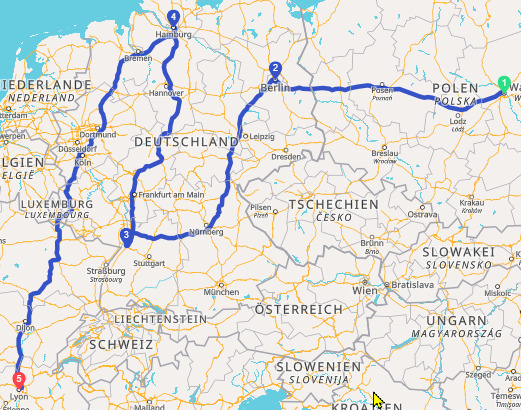 |
By optimizing the sequence for all intermediate stops (stops 2-4), the stops in Hamburg and Karlsruhe are automatically swapped, resulting in a saving of around 1000 kilometers on the journey. | 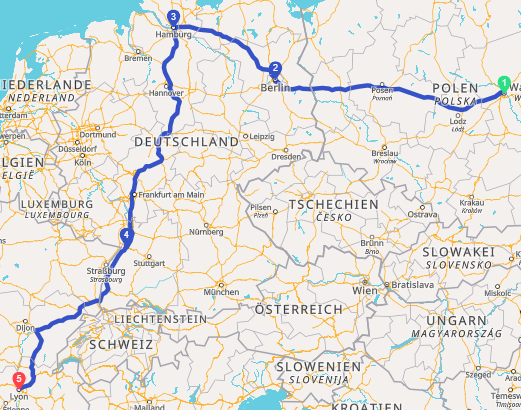 |
However, if only stops 2 and 3 or 3 and 4 are selected for the optimization, this will not lead to any improvement.